
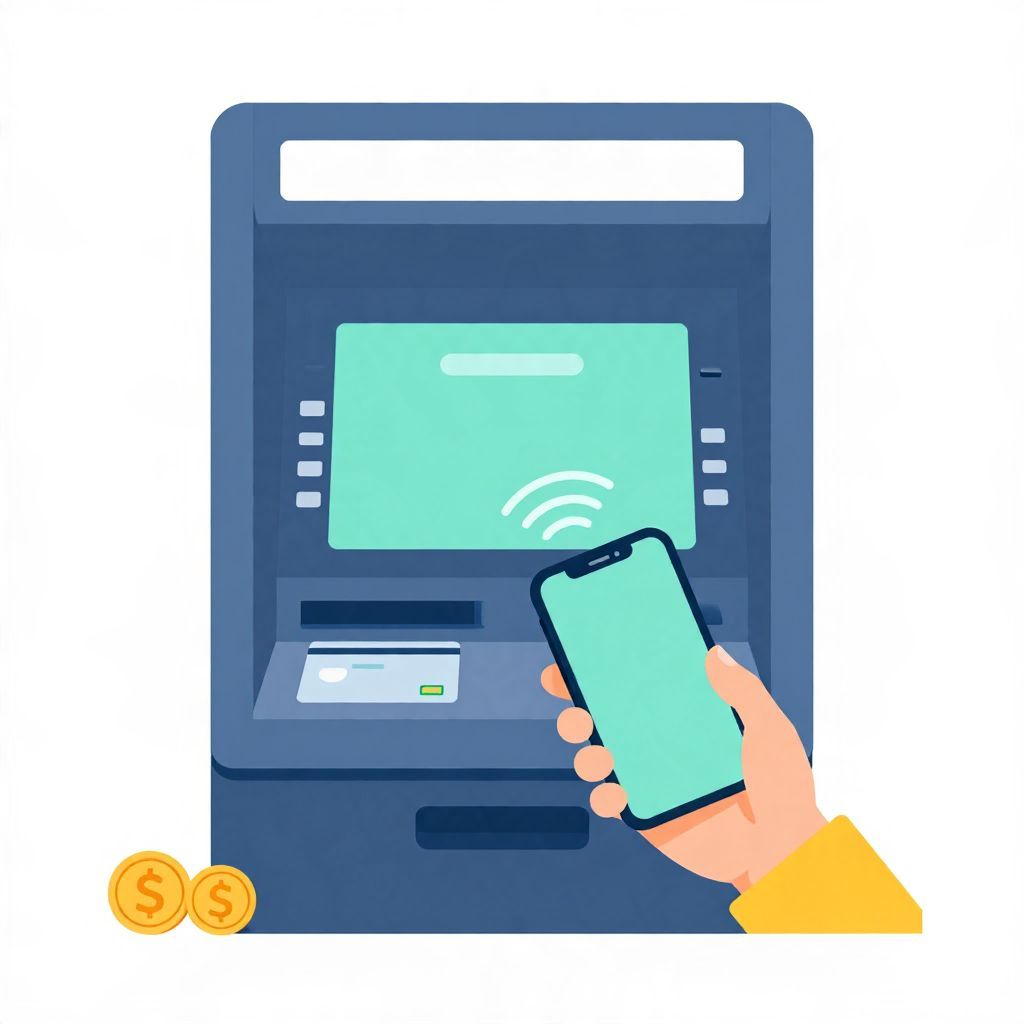
If you’re wondering, “Can you use Apple Pay at ATM?” the short answer is: sometimes, yes. It depends on whether the ATM supports contactless card payments or mobile wallet access, and whether your bank allows Apple Pay for ATM withdrawals. You usually need an ATM with a contactless symbol or a cardless cash feature.
Apple Pay can make ATM access more convenient, but it is not universally available. The exact steps, fees, and limits depend on your bank, your card issuer, and the ATM network. Here’s what to know before you try it.
Can You Use Apple Pay At ATM?
Yes, at some ATMs you can use Apple Pay if the machine supports contactless transactions or cardless cash withdrawals. You tap your iPhone or Apple Watch instead of inserting a physical card, then complete the transaction with your passcode, Face ID, or Touch ID. Availability varies by bank, ATM operator, and country.
How Apple Pay Works at an ATM
Apple Pay stores a digital version of your debit card or eligible bank card on your device. At a compatible ATM, the machine reads the contactless signal from your phone or watch. You then authenticate the transaction and choose the withdrawal or account option you need.
What you usually need
- An iPhone or Apple Watch with Apple Pay set up
- A debit card linked to Apple Pay, if your bank supports ATM withdrawals through it
- An ATM with a contactless reader or cardless cash feature
- Your device passcode, Face ID, or Touch ID for security
What the ATM may ask for
- Select “withdraw cash” or another transaction type
- Choose your linked account, such as checking
- Enter the withdrawal amount
- Confirm your identity with your device and sometimes a PIN
When Apple Pay at an ATM Usually Works
Apple Pay at an ATM generally works when the ATM is designed for contactless card use or cardless cash. Some banks also let you start a withdrawal in their mobile app and then complete it at the ATM with your phone. The key issue is not Apple Pay alone, but whether the bank and machine support it.
Common compatible setups
- Contactless ATM with a tap symbol
- Cardless cash withdrawal through a bank app
- Debit card added to Apple Pay and accepted by the ATM network
Common reasons it may not work
- The ATM does not support contactless payments
- Your bank has not enabled Apple Pay for ATM use
- Your card type is not eligible for cash withdrawal through Apple Pay
- The ATM requires a physical card for that transaction
How to Check Before You Go
Because support varies, it helps to check first. That can save time and prevent failed transactions, especially if you need cash urgently.
- Look for a contactless symbol on the ATM.
- Check your bank’s app or website for cardless cash or Apple Pay ATM instructions.
- Make sure your debit card is added to Apple Pay.
- Confirm that your device has battery and NFC enabled.
- Bring a backup payment method in case the ATM does not accept Apple Pay.
Step-by-Step: Using Apple Pay at an ATM
The exact process can vary, but the general flow is similar at many compatible ATMs. If the machine supports tap-to-pay or cardless access, the transaction is usually straightforward.
Typical steps
- Wake your iPhone or Apple Watch.
- Open Apple Pay if needed, or use the default wallet shortcut.
- Hold the device near the contactless reader on the ATM.
- Authenticate with Face ID, Touch ID, or your passcode.
- Follow the on-screen prompts to withdraw cash or complete another transaction.
- Take your cash, receipt if offered, and end the session.
Security tip
Only use ATMs in safe, well-lit locations. Even though Apple Pay adds security by using tokenization instead of your actual card number, the physical ATM and surrounding area still matter. Cover the keypad when entering a PIN if one is required.
Is Apple Pay Safer Than Using a Physical Card?
In many cases, Apple Pay can be safer than swiping or inserting a card because it does not share your actual card number with the ATM in the same way a physical card does. It also requires device authentication. That said, no payment method is risk-free, and you should still monitor your account for unauthorized activity.
Potential security advantages
- Your card details are not directly exposed
- Biometric authentication adds another layer of protection
- Lost or stolen devices can often be locked remotely
Remaining risks
- Skimming or tampering at the ATM itself
- Someone accessing your unlocked device
- Unauthorized withdrawals if your bank account is compromised
Fees, Limits, and Bank Rules
Using Apple Pay at an ATM does not automatically change the fees or limits tied to your debit card or bank account. You may still face out-of-network ATM fees, daily withdrawal limits, or cash advance restrictions depending on the card and institution. These terms are set by the bank and ATM operator, not by Apple Pay alone.
Things that can affect cost
- Your bank’s ATM fee policy
- Whether the ATM belongs to your bank’s network
- Daily cash withdrawal limits
- Foreign transaction or currency conversion fees if abroad
For example, if your bank allows a $500 daily ATM withdrawal limit, Apple Pay will not necessarily increase that limit. If you try to withdraw more than allowed, the ATM may decline the transaction even if the tap feature works.
Apple Pay at ATMs Outside the United States
Rules and availability can differ by country. Some regions have broader contactless ATM adoption than others, and local banks may use different card networks or cash access systems. If you are traveling, check your bank’s international ATM guidance before relying on Apple Pay for cash withdrawals.
Travel considerations
- Your card may need international ATM access enabled
- Foreign banks may support different contactless standards
- Dynamic currency conversion may be offered, which can add cost
- Network outages or regional restrictions can affect availability
What to Do If Apple Pay Does Not Work at the ATM
If the ATM rejects Apple Pay, do not assume your account is the problem. The issue may simply be that the machine does not support contactless access. Try another ATM in the same network, use your physical debit card, or access cash through your bank’s app if available.
Practical troubleshooting steps
- Move your phone or watch closer to the reader
- Try a different ATM with a contactless symbol
- Restart your device if Wallet is not responding
- Check whether your debit card is still active in Apple Pay
- Contact your bank if the ATM says the card is not supported
Should You Rely on Apple Pay for ATM Cash Access?
Apple Pay can be a useful backup or convenience feature, but it should not be your only plan for getting cash. Because support is inconsistent, it is smart to keep a physical debit card available and know your bank’s cardless cash options. That way, you are not stuck if a machine or phone battery fails.
Best use cases
- You want a cardless option for convenience
- Your bank explicitly supports mobile-wallet ATM withdrawals
- You prefer fewer physical cards in your wallet
When a physical card is still better
- You are using an older ATM
- You are traveling in an area with limited contactless support
- You need a backup in case your phone is lost or dead
Bottom Line
Can you use Apple Pay at ATM? Sometimes yes, but only at ATMs that support contactless or cardless withdrawals and only if your bank allows it. Check for the contactless symbol, confirm your bank’s rules, and keep a backup payment method. For related practical reading, you may also find can you add a Visa gift card to Apple Pay and can you use HSA for gym membership helpful.