
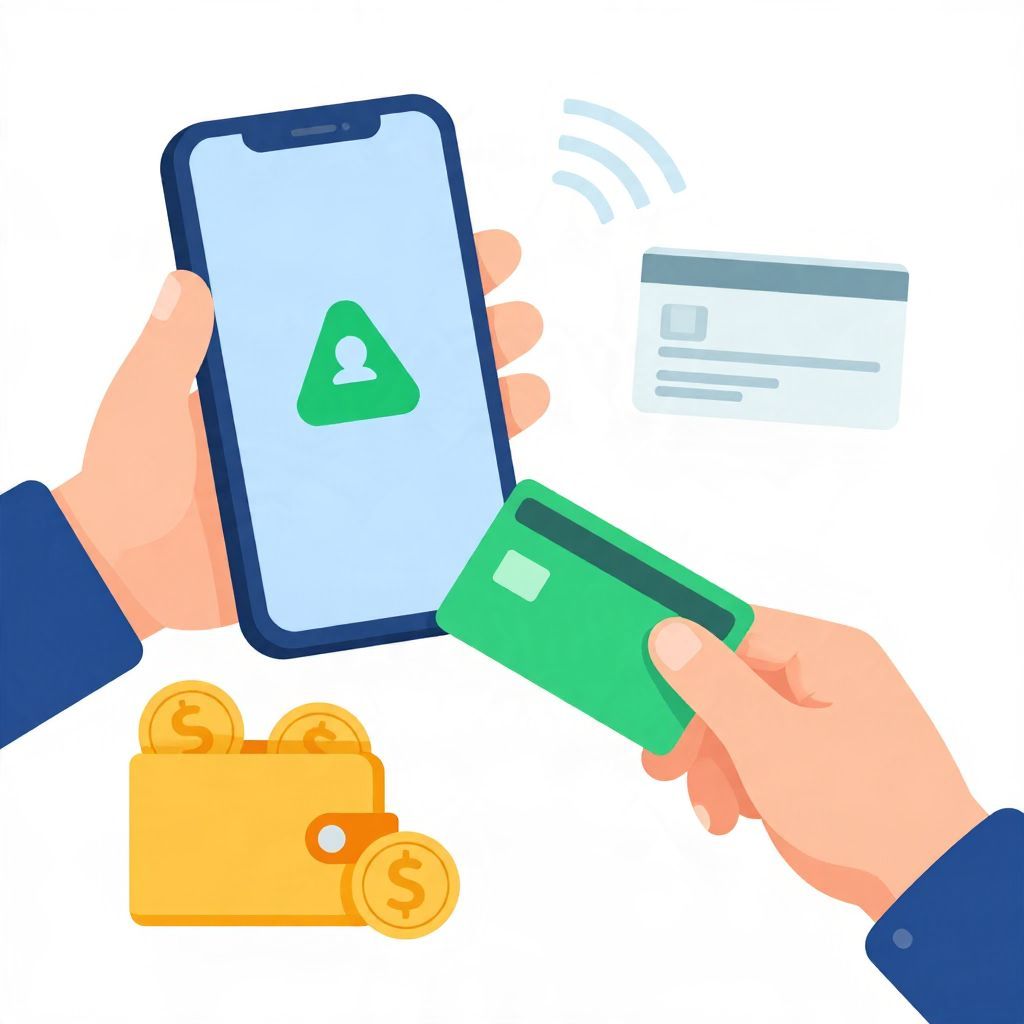
If you want to use tap to pay with Cash App, the key thing to know is that it works through the Cash App Card on a contactless-enabled phone or card reader, not as a universal “tap anywhere” feature. In most cases, you’ll need the Cash App Card added to your mobile wallet or use the physical card at a tap terminal.
Below, you’ll find a step-by-step guide, what to check before you try it, and a few practical tips to avoid declined payments or setup issues.
How To Tap To Pay With Cash App
To tap to pay with Cash App, you generally need an active Cash App Card and a phone that supports contactless payments, such as Apple Pay or Google Pay, depending on your device. Once the card is added to your wallet, you can hold your phone near a contactless reader to pay. If you use the physical Cash App Card, it must be a tap-enabled terminal.
What “Tap To Pay” Means With Cash App
Cash App itself is a payment app, but tap to pay usually refers to contactless checkout. That can mean one of two things: paying with your Cash App Card through a mobile wallet on your phone, or tapping the physical Cash App Card at a contactless terminal. The exact experience depends on the merchant, the device, and whether contactless payments are enabled.
Important distinction
- Cash App balance is the money in your account.
- Cash App Card is the debit card linked to that balance.
- Tap to pay usually means contactless card or wallet payment at checkout.
Step-by-Step: How To Tap To Pay With Cash App
1. Make sure you have a Cash App Card
You typically need a Cash App Card to use Cash App for in-store tap payments. If you do not have one yet, you may need to order it in the app first. Availability and eligibility can vary by account and location.
2. Check that your phone supports contactless payments
For phone-based tap to pay, your device must support NFC/contactless payments. On iPhone, that usually means using Apple Pay. On Android, that usually means using Google Wallet or another supported wallet. If your phone does not support contactless payments, you may still be able to use the physical Cash App Card.
3. Add your Cash App Card to your mobile wallet
Open your phone’s wallet app and add the Cash App Card as a payment method. You may be asked to verify the card or confirm details in Cash App. Follow the prompts carefully so the wallet can complete setup.
4. Fund your Cash App balance
Before tapping, make sure there is enough money in your Cash App balance to cover the purchase. If your balance is too low, the payment may be declined unless you have another linked funding source and the transaction is allowed through your wallet setup.
5. Look for the contactless symbol at checkout
At the store, confirm the terminal accepts contactless payments. You’ll usually see a wave-like tap symbol. If the terminal does not support tap payments, you may need to insert or swipe the card instead.
6. Hold your phone or card near the reader
Wake your phone, authenticate if required, and hold it near the reader until you see confirmation. If you are using the physical Cash App Card, tap it on the reader and wait for approval. Keep the device steady for a moment if the first attempt does not register.
7. Confirm the payment went through
Check the terminal screen, your phone notification, or your Cash App activity feed to confirm the transaction. If the payment fails, do not assume it was processed twice. First verify the receipt or app history before trying again.
Common Reasons Tap To Pay May Not Work
Your card is not active
If the Cash App Card has not been activated, tap payments will not work. Check the card status in the app and complete activation if needed.
Your phone wallet is not set up correctly
If the card was not added properly to Apple Pay or Google Wallet, the terminal may not recognize it. Remove and re-add the card if setup seems incomplete.
The merchant does not accept contactless payments
Some terminals do not support tap-to-pay transactions. In that case, you may need to use chip, swipe, or another payment method.
There are insufficient funds or account restrictions
Low balance, security flags, or temporary account restrictions can cause a decline. If your Cash App account has been limited, you may need to resolve that issue before trying again.
Your device settings are off
Contactless payments may require NFC to be enabled on Android devices, or the correct default wallet to be selected. If your phone is locked down by settings, the tap may not register.
Tips To Make Tap Payments Smoother
- Keep your Cash App balance updated so you know whether a purchase can clear.
- Use the correct wallet if your phone supports more than one payment app.
- Hold the phone steady near the reader for a second or two.
- Check for card limits or spending controls in Cash App before shopping.
- Save receipts for returns, disputes, or budgeting.
Is Tap To Pay With Cash App Safe?
Contactless payments are generally designed with security in mind. A tap transaction typically uses tokenization or other protections through the wallet system, rather than sharing your full card number with every merchant. Still, no payment method is risk-free, so you should monitor your Cash App activity and report suspicious transactions quickly.
Good security habits
- Use a strong phone passcode or biometric lock.
- Turn on notifications for transactions.
- Do not share your Cash App login details.
- Review purchases regularly for errors or fraud.
Tap To Pay vs. Other Cash App Payment Methods
Tap to pay
This is best for quick in-store purchases at contactless terminals. It is fast and convenient, but it depends on compatible hardware.
Card insert or swipe
If tap is unavailable, the Cash App Card may still work by chip or swipe, depending on the merchant and card status.
Online and peer-to-peer payments
Cash App also supports sending money to people and paying online in some cases. Those transactions are different from in-person tap payments and may have different approval rules.
Example: What Happens at Checkout?
Suppose you want to buy a $12 lunch. If your Cash App balance is at least $12 and the restaurant has a contactless terminal, you can open your phone wallet or tap your Cash App Card. If the terminal approves the transaction, the $12 is deducted from your Cash App-linked funds. If the balance is only $8, the payment may be declined unless another allowed funding source is available.
When To Contact Support
If you have enough funds, your card is active, and the terminal supports contactless payments but tap still fails repeatedly, it may be time to contact Cash App support through the app. Keep a record of the merchant name, date, time, and any error message so you can explain the issue clearly.
Bottom Line
How to tap to pay with Cash App usually comes down to using your Cash App Card through a supported mobile wallet or at a contactless terminal. Make sure your card is active, your phone is set up correctly, and your balance is sufficient before you try. For related setup help, you may also find how to add cash to Cash App Card and how to get Afterpay on Cash App useful.