
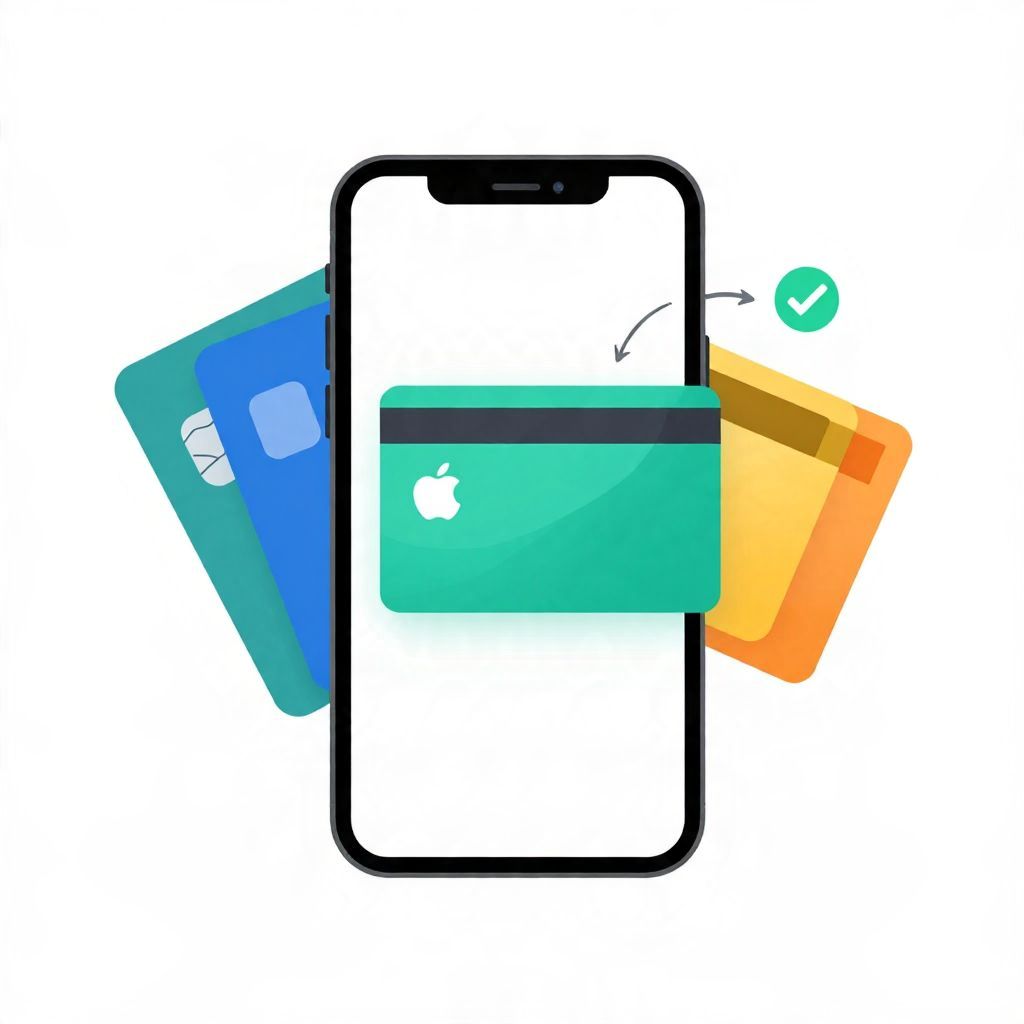
If you want to use a different card for Apple Pay purchases, you can change the default card in Apple Wallet in just a few taps. This is useful if you want rewards on a specific credit card, prefer using a debit card for everyday spending, or simply want the card you use most to appear first.
The exact steps are straightforward, but they can vary slightly by iPhone, Apple Watch, or region. Below, you’ll find a step-by-step guide, plus practical tips for avoiding payment errors and keeping your spending organized.
How To Change Default Card In Apple Wallet
To change the default card in Apple Wallet, open the Wallet app on your iPhone, touch and hold the card you want to use most, then drag it to the front of your cards. You can also go to Settings, tap Wallet & Apple Pay, and choose a different default card there. On Apple Watch, the default card is set through the Watch app on your iPhone.
Step-by-Step: Change the Default Card on iPhone
If you use Apple Pay on your iPhone, this is the quickest way to set your preferred card.
- Open the Wallet app.
- Find the card you want to use as your default.
- Touch and hold the card.
- Drag it to the front of your stack of cards.
- Release it when it is in the first position.
In many cases, the first card in Wallet becomes the default card for Apple Pay. If your device shows a different menu layout, you can also use the Settings app.
Alternative method through Settings
- Open Settings.
- Tap Wallet & Apple Pay.
- Look for Default Card.
- Select the card you want to use.
This method can be helpful if you have several cards and want to change the default without rearranging your Wallet stack.
How To Change the Default Card on Apple Watch
If you pay with Apple Watch, the default card is managed through the Watch app on your iPhone rather than directly on the watch itself.
- Open the Watch app on your iPhone.
- Tap Wallet & Apple Pay.
- Choose Default Card.
- Select the card you want to use for Apple Pay on your watch.
Keep in mind that your iPhone default card and Apple Watch default card do not always have to be the same. That can be useful if you want one card for phone purchases and a different one for watch payments.
Why Changing the Default Card Matters
Choosing the right default card is not just about convenience. It can also affect how you manage everyday spending, track rewards, and stay within your budget.
1. Maximize rewards where it makes sense
If one card offers better cash back or points on groceries, gas, or travel, setting it as the default can help you earn more on purchases you already make. Just remember that rewards should not encourage overspending. A 2% reward is only helpful if you pay the balance in full and avoid interest charges.
2. Separate personal and business spending
If you use a card for work-related expenses, making it the default during business travel can simplify recordkeeping. That said, you should still keep receipts and follow your employer’s reimbursement rules.
3. Control debit versus credit use
Some people prefer a debit card as the default to reduce the chance of running up credit card balances. Others prefer a credit card for purchase protection or rewards. The best choice depends on your spending habits and whether you can pay off the balance each month.
What Happens When You Change the Default Card?
Changing the default card only changes which card Apple Pay tries to use first. It does not close any account, cancel any card, or change your billing terms. Your existing cards remain in Wallet unless you remove them manually.
If a merchant or app lets you choose a different card at checkout, you can still do that even after setting a default. The default simply becomes the starting point for most Apple Pay transactions.
Important note about card eligibility
Not every card can be added to Apple Wallet, and not every bank or card issuer supports every Apple Pay feature. Availability can vary by country, region, bank, and card type. If a card is missing or unavailable, the issue may be with the issuer rather than your device.
Troubleshooting Common Problems
If your default card does not seem to change, a few simple checks may help.
- Restart your device. A quick restart can fix temporary software glitches.
- Update iOS or watchOS. Older software may cause Wallet settings to behave unexpectedly.
- Check card status. A card that is expired, suspended, or removed by the issuer may not work as expected.
- Confirm your region settings. Apple Pay features can differ by country or territory.
- Make sure the card is still in Wallet. If it was deleted, you’ll need to add it again before setting it as default.
If the problem continues, contact your card issuer or Apple Support. Since payment systems involve both your device and your bank, the issue may be on either side.
Helpful Tips for Managing Apple Wallet Cards
Once you know how to change the default card in Apple Wallet, you can use a few simple habits to make the system work better for your finances.
Keep only the cards you actually use
Too many cards in Wallet can make it harder to choose the right one. Keeping only active, useful cards can reduce confusion and make checkout faster.
Match the default card to your spending goal
If you are trying to pay down debt, you may want your debit card to be the default so you are less tempted to finance purchases. If you are focused on earning rewards and pay your balance in full, a rewards credit card may be a better default.
Review statements regularly
Changing your default card can make spending feel more seamless, so it is important to review statements and transaction alerts. Small contactless purchases can add up quickly, especially if you use Apple Pay for frequent everyday spending.
Use card controls if available
Some issuers offer spending alerts, card locks, or category tracking. These tools can improve budgeting and help you spot unauthorized charges sooner. Features vary by bank and card issuer.
Common Questions About Apple Wallet Default Cards
Can I have different default cards for different devices?
Yes, in many cases you can set separate defaults for iPhone and Apple Watch. That can be useful if you use one card more often on one device than the other.
Does changing the default card affect subscriptions?
Usually no. Recurring subscriptions are often billed to the card you originally used when you signed up, unless you update the payment method with the merchant or service provider.
Will Apple Pay always use the default card?
Apple Pay generally starts with your default card, but you can often choose another card before paying. Some merchants, apps, or terminals may also behave differently depending on how the transaction is processed.
Is Apple Wallet the same as Apple Pay?
Apple Wallet stores your cards and passes, while Apple Pay is the payment feature that lets you use those cards at checkout. In everyday conversation, people often use the terms interchangeably, but they are not exactly the same thing.
When a Different Card May Be the Better Choice
There is no single best default card for everyone. A good choice depends on your financial priorities.
- Choose a debit card if you want to limit spending to money already in your account.
- Choose a credit card if you want rewards, fraud protection, or a clear monthly statement and you pay in full.
- Choose a business card if you need cleaner expense tracking for work purchases.
- Choose a travel card if you frequently buy transit, hotel, or airline-related items and the card offers useful benefits.
Remember that rewards, fees, interest rates, and protections differ by card. A card with strong benefits may still cost more if it carries an annual fee or if you do not pay the balance in full.
Final Takeaway
Changing the default card in Apple Wallet is simple: open Wallet or Settings, choose the card you want, and set it as the first option or default payment card. The best choice is usually the card that fits your spending habits, budget, and rewards strategy. If you want more practical money tips, you may also find does WinCo take Apple Pay? and how to delete a Venmo account helpful.