
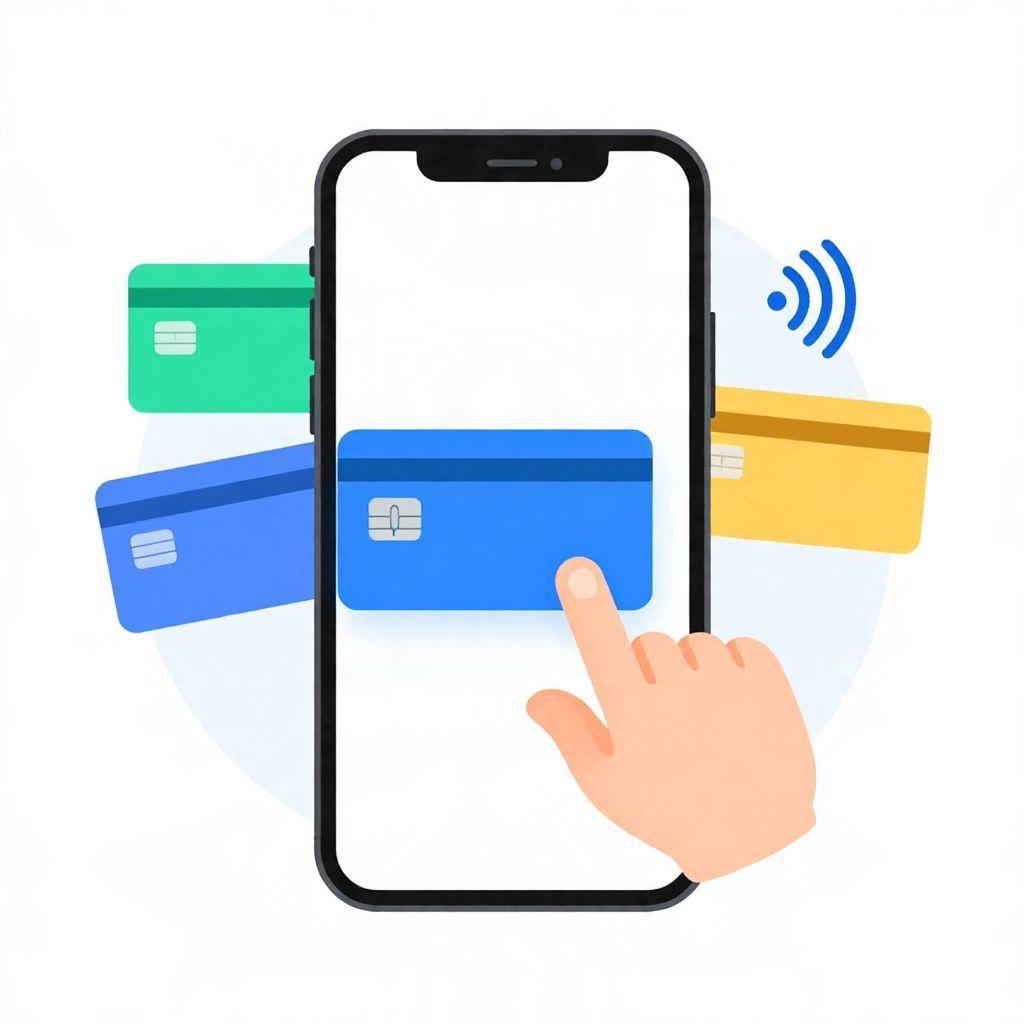
If you use Apple Pay often, setting the right default card can save time at checkout and help you control which account gets charged first. The process is usually quick, but the exact steps can vary a little by device and iOS version.
Below, you’ll learn how to change your Apple Pay default card on iPhone, Apple Watch, iPad, and Mac, plus what to do if the card you want does not appear or won’t stay selected.
How To Change Apple Pay Default Card
To change your Apple Pay default card, open the Wallet app on your Apple device, press and hold the card you want to use, then drag it to the front of your cards or choose it in Settings under Wallet & Apple Pay. The top or first card is usually treated as the default for Apple Pay purchases.
Step-by-Step: Change the Default Card on iPhone
Using the Wallet app
- Open the Wallet app on your iPhone.
- Touch and hold the card you want to make default.
- Drag it to the front of the stack, if your version of iOS allows reordering this way.
- Release it when it is in the first position.
Using Settings
- Open Settings.
- Tap Wallet & Apple Pay.
- Look for a Default Card or similar option.
- Select the card you want Apple Pay to use first.
If you use multiple cards, the default card is the one Apple Pay tries first for in-store purchases, online checkouts, and app payments. If that card is declined, Apple Pay may ask you to choose another card.
How to Change the Default Card on Apple Watch
Your Apple Watch can use a different default card from your iPhone. This matters if you pay with the watch more often than your phone.
- On your iPhone, open the Watch app.
- Tap Wallet & Apple Pay.
- Choose Default Card.
- Select the card you want your Apple Watch to use.
You can also review the cards already added to the watch. If the card you want is missing, you may need to add it again or confirm it with your bank or card issuer.
How to Change the Default Card on iPad or Mac
On iPad
- Open Settings.
- Tap Wallet & Apple Pay.
- Choose the card you want as default, if the option is available on your device.
On Mac
On a Mac, Apple Pay is usually tied to the cards stored in Wallet settings or in system settings, depending on the model and operating system version. If your Mac supports Apple Pay, check the relevant settings area and look for the default card option.
Because Apple updates menus over time, the labels may differ slightly. If you cannot find the setting, search your device settings for “Wallet” or “Apple Pay.”
Why Your Default Card Matters
Choosing the right default card is not just about convenience. It can also help you manage spending, rewards, and account balances more intentionally.
Common reasons to switch the default card
- Cash back or rewards: You may want to use the card with the best rewards for everyday purchases.
- Budgeting: You may prefer a debit card or a specific credit card to track spending more easily.
- Balance management: You might want to use a card with a lower balance or a card you pay off first.
- Business vs. personal spending: Some people keep separate cards for work and personal expenses.
For example, if you are trying to stay within a monthly budget, using one designated card for groceries and transit can make it easier to review your spending later. That does not reduce your total spending by itself, but it can improve visibility.
What Happens When You Change the Default Card?
Changing the default card does not delete your other cards from Apple Wallet. It only changes which card Apple Pay tries first. You can still manually choose another card at checkout whenever you want.
Important things to know
- Your old default card remains active in Wallet unless you remove it.
- Some transactions may still use a different card if you manually select one.
- If a merchant or device does not support Apple Pay in the same way, the payment flow may look slightly different.
- Apple Pay does not change your card’s APR, fees, or billing terms. Those remain set by your card issuer.
Troubleshooting: If You Can’t Change the Default Card
If the card you want will not become the default, the issue is often a settings problem, a card verification issue, or a device compatibility issue rather than a payment problem.
Check these common fixes
- Update your device: Install the latest iOS, watchOS, or macOS updates available for your device.
- Restart the device: A simple restart can clear temporary glitches.
- Confirm the card is added: If the card is not in Wallet, you cannot set it as default.
- Verify the card: Some cards require confirmation from your bank before they can be used with Apple Pay.
- Check region or issuer limits: Apple Pay availability and card support can vary by country, bank, and card type.
If the problem continues, contact your card issuer or review Apple’s device settings. In some cases, the bank may have placed a temporary restriction on the card, or the card may not be eligible for Apple Pay on that device.
How to Choose the Best Default Card for Your Finances
There is no single “best” default card for everyone. The right choice depends on your spending habits, debt situation, and financial goals.
Consider these factors
- Interest rate: If you carry a credit card balance, a lower APR may matter more than rewards.
- Rewards structure: A card with strong cash back on groceries, gas, or travel may fit your routine.
- Debit vs. credit: Debit can help some people avoid overspending, while credit may offer better fraud protections or rewards depending on the card.
- Fee exposure: Some cards have annual fees, foreign transaction fees, or other costs that affect value.
- Repayment habits: If you do not pay your credit card in full, rewards may be outweighed by interest charges.
As a simple example, a rewards card that gives 2% back may look attractive. But if you carry a balance and pay interest, the cost of borrowing can easily exceed the rewards. Always compare the full cost of using the card, not just the headline perk.
Apple Pay Default Card vs. Card Used for a Specific Purchase
It helps to separate the default card from the card you choose for one transaction. The default card is your starting point. The card used for a specific purchase is the one selected at checkout.
When manual selection makes sense
- You want to use a different rewards card for a certain category.
- You are separating business and personal expenses.
- You are trying to keep a purchase off a particular account.
- Your default card is temporarily unavailable or declined.
Manual selection gives you flexibility, but it also means you need to pay attention at checkout. If you forget to switch cards, Apple Pay will usually use the default card instead.
Security and Privacy Tips
Apple Pay is designed to reduce the need to share your actual card number with merchants, but you should still manage your payment settings carefully.
- Use a strong passcode and enable Face ID or Touch ID where available.
- Review your Wallet cards regularly and remove any you no longer use.
- Keep your Apple ID secure with two-factor authentication.
- Check recent transactions if you change cards or lose a device.
If your phone or watch is lost, you may need to use Apple’s device management tools or contact your issuer to suspend the card in Wallet. The exact steps can vary by device and issuer.
Frequently Asked Questions
Does changing the default card affect my credit score?
No. Simply changing the default card in Apple Pay does not affect your credit score. Your score is influenced by factors such as payment history, balances, credit utilization, and account age.
Can I set a debit card as the default?
Yes, if the debit card is supported and added to Apple Wallet. Many people use debit as their default for spending control, though that depends on personal preference and card availability.
Why does Apple Pay keep switching back to another card?
This can happen if the card you selected is not fully verified, if the device needs an update, or if the issuer has restrictions. Recheck Wallet settings and confirm the card is active.
Is the default card the same on all my devices?
Not always. Your iPhone, Apple Watch, iPad, and Mac can each have separate settings. You may need to change the default card on each device individually.
Bottom Line
Changing your Apple Pay default card is usually simple: open Wallet or Settings, choose the card you want, and confirm it is set as the default on the device you use most. If it does not work right away, check verification, updates, and device-specific settings. For more help, you may also want to read how to change the default Apple Pay card and how to change the default card in Apple Wallet.